I have a number of Hyper-v Windows Server 2012 R2 core host machines in my environment. Once in a while, I have to check for installed software and uninstall software for maintenance. The following WMIObject class helped me achieve the task in PowerShell.
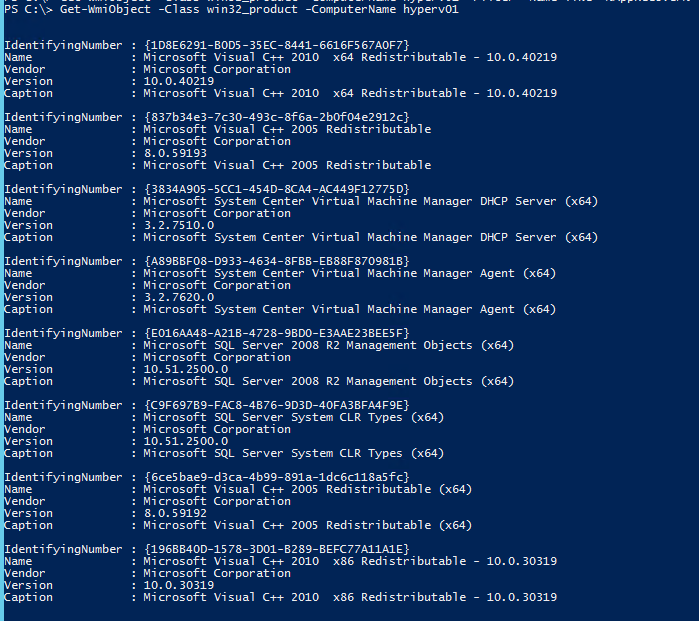
Check for installed software:

Filter by Software to be Uninstalled:

Locate the Uninstall() Method of the Win32_Product Class using the Get-Member cmdlet:

Use the Uninstall() Method to remove the selected software:

The uninstall task starts to run and immediately restarts the remote server in question to complete the uninstallation. Usually, the return value should be 0 (zero). But in this case, the msi installer triggered an automatic restart to complete the uninstallation.Checking for installed software after the restart, shows the AppRecovery software has been removed.
I’ve also encountered a situation where the software uninstallation failed because User Account Control was enabled as indicated below. In such a scenario, I ran Powershell in Administrator mode before successfully uninstalling the software.
PS C:\> Get-WmiObject -Class win32_product -ComputerName hvs00 -Filter "Name like '%symantec%'"
IdentifyingNumber : {52B066B2-F52B-40B2-A05D-C69F497ED4D0}
Name : Symantec Backup Exec Remote Agent for Windows
Vendor : Symantec Corporation
Version : 14.0.1798
Caption : Symantec Backup Exec Remote Agent for Windows
PS C:\> $b = Get-WmiObject -Class win32_product -ComputerName hvs00 -Filter "Name like '%symantec%'"
PS C:\> $b.Uninstall()
__GENUS : 2
__CLASS : __PARAMETERS
__SUPERCLASS :
__DYNASTY : __PARAMETERS
__RELPATH :
__PROPERTY_COUNT : 1
__DERIVATION : {}
__SERVER :
__NAMESPACE :
__PATH :
ReturnValue : 1603
PSComputerName :
The System Event Log indicates that the removal failed:

Start Powershell using the RunAs Administrator argument:
PS C:\> Start-Process powershell -Verb runas

PS C:\> $b = Get-WmiObject -Class win32_product -ComputerName hvs00 -Filter "Name like '%symantec%'"

PS C:\> $b.Uninstall()
__GENUS : 2
__CLASS : __PARAMETERS
__SUPERCLASS :
__DYNASTY : __PARAMETERS
__RELPATH :
__PROPERTY_COUNT : 1
__DERIVATION : {}
__SERVER :
__NAMESPACE :
__PATH :
ReturnValue : 0
PSComputerName :
Removal was successful this time, with ReturnValue set at 0.
 Chinny Chukwudozie, Ai architecture.
6 responses to “Uninstalling Software with Powershell.”
If you need an application uninstalled and installed silently, you can check out the Powershell script that I wrote:
http://joseespitia.com/2016/07/01/universal-uninstall-and-install-install-tool-1/
I hope this helps anyone searching 😀
hi, I tried as below and getting error
$content = Get-Content C:\Temp\Host.txt
$b = Get-WmiObject -Class win32_product -ComputerName $content -Filter “Name like ‘%OpenOffice%’”
$b.Uninstall()
Error:
You cannot call a method on a null-valued expression.
At line:3 char:1
+ $b.Uninstall()
+ ~~~~~~~~~~~~~~
+ CategoryInfo : InvalidOperation: (:) [], RuntimeException
+ FullyQualifiedErrorId : InvokeMethodOnNull
“-like”
[…] found some pretty decent scripts that should do the job (i.e. this one and this one), but that only worked on one […]
great great help mate! following your blog from now on! 😀
Hii nice reading your post