In preparation for Office 365 migration, we had to match the current on premise users’ logon name (UserPrincipalName) with their email addresses to eliminate any user confusion and ease the outlook authentication process .As an example,
The on premise logon name is : TobeGray@contosolabs.com
Email Address is : Tobe.Gray@contosoconsults.com
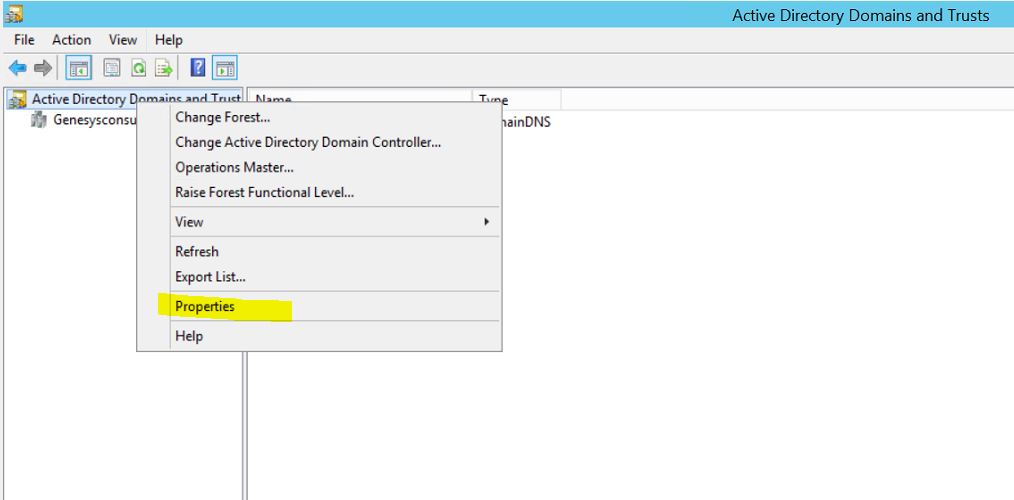
To match the On premise logon with user email address, we’ll create an additional UPN suffix by opening Active Directory Domains and Trust, right the upper left server folder and select Properties:
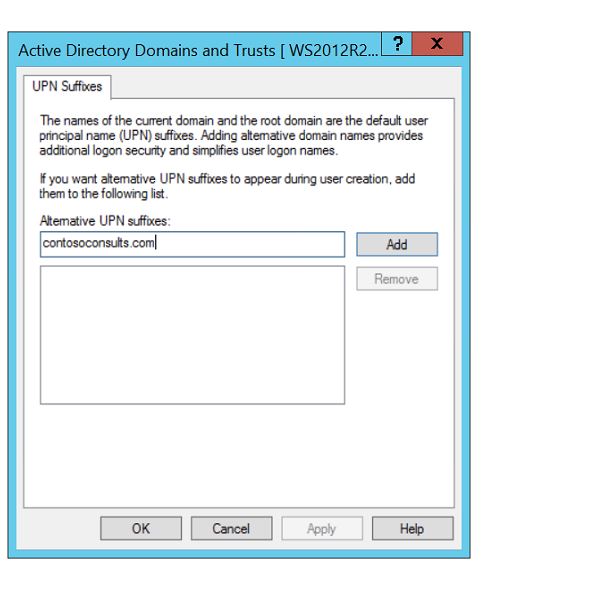
Enter the required alternative UPN suffix as indicated below, click Add and Ok:
To verify the changes and update a user’s upn suffix, open Active Directory Users and Computers, select the user, right click and select properties, select the Account tab:

In the user logon name field, select the new upn, change the name from TobeGray to Tobe.Gray and click ok. The user’s logon token will be populated with the new upn property and resolve any outlook authentication errors that might occur due to a logon name and email address mismatch after mailbox migration to Office 365 tenant.
The same operation could also be accomplished with the following PowerShell script:
PS C:\scripts> Get-ADForest | fl UPNSuffixes
UPNSuffixes : {}
PS C:\scripts> Get-ADForest | Set-ADForest -UPNSuffixes @{add="contosoconsults.com"}

 Chinny Chukwudozie, Ai architecture.
4 responses to “Create a UPN Suffix using PowerShell for Office 365 Migration.”
Thanks for sharing jbernec.
You’re welcome dude. Thank you.
[…] ← Create a UPN Suffix using PowerShell for Office 365 Migration. […]
I get html formatted output, but the command/content of what I copied is missing. I’m copying from the editor pane in ISE. Any idea?
I copy:
Get-ADForest | fl UPNSuffixes
Get-ADForest | Set-ADForest -UPNSuffixes @{add=”contosoconsults.com”}
I get:
Thanks@